
Install the Windows app
Download Twinimy for Windows, install it and open it; it shows a QR code.
The free Twinimy app for Windows 10 and 11 brings the calls, texts and files of your Android phone with the SIM to your computer; next to an iPhone or a second phone, or on its own.
At your desk, no need to reach for the phone: reply to texts on the keyboard, make calls and open the phone’s files right there.
The Windows app is free, for Windows 10 and 11 (64-bit).
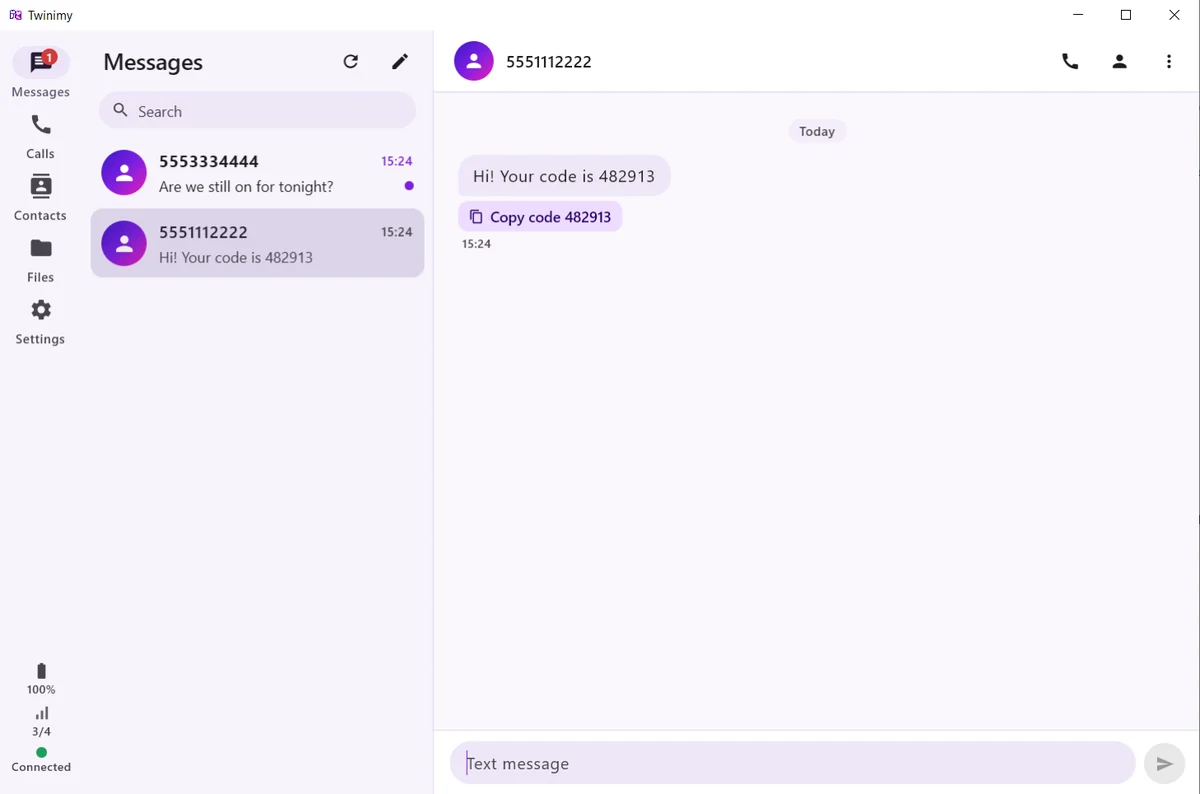
Download Twinimy for Windows, install it and open it; it shows a QR code.
In the Android app on the phone with the SIM, tap “Connect a Windows computer” and scan the code on the computer.
The computer and the Android phone must be on the same network: the phone’s hotspot or a shared Wi-Fi.
The Android phone’s calls, texts, contacts and files on your computer. Talk through its microphone and speakers or a headset, and open the phone’s files with a double-click.
An iPhone, a second Android phone and a computer can be connected together. A call rings on all of them; whichever answers keeps the call and the others go quiet.
Don’t want the computer to ring? Switch incoming calls off in the Windows app’s settings; texts and calling out from the computer stay as they are.
Try it free for 7 days; no card needed.